Help
Registering a new account
How to create your Doghouse account, and what to do if your CRN is already in use.
Your Doghouse account is linked to your CRN (your AFA competitor registration number). The CRN is how the portal recognises you, so have it to hand before you start.
Before you start
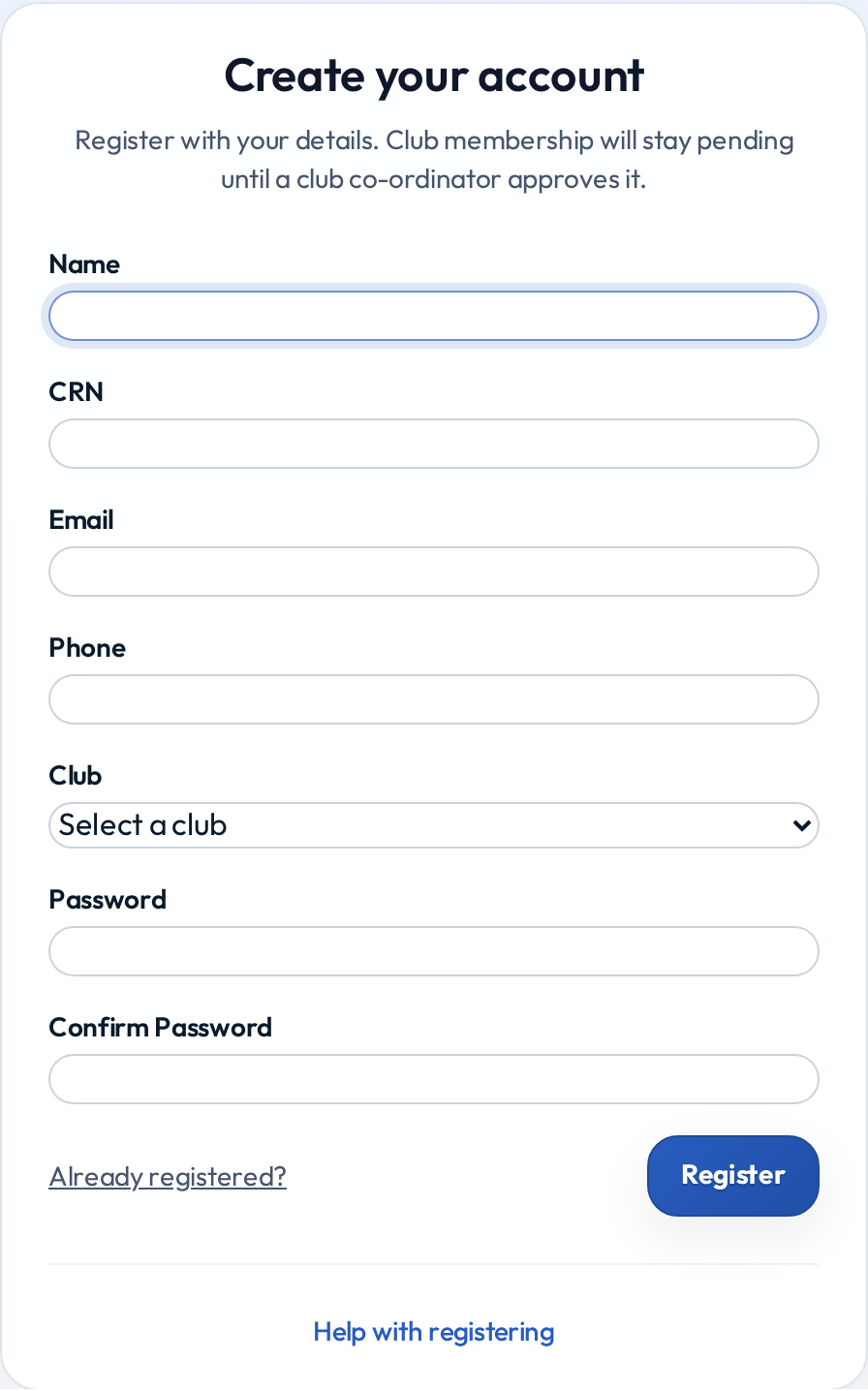
Register using the same name, email address and phone number your club has on file for you. This matters more than it looks: the portal checks the details you submit against the record your club already holds, and the closer they match, the less waiting around you will do.
- Name and email that match the record on file will get you straight in.
- Only some details matching means a club co-ordinator confirms it is really you first.
- Nothing matching means the registration has to be sorted out by hand.
If you have changed email address since your club last updated your details, register with the address they have on file and change it afterwards from your profile.
Creating your account
- Go to the sign-in page and choose Register.
- Enter your Name, CRN, Email and (optionally) Phone.
- Choose your Club from the list.
- Set a password, then confirm it.
- Select Register.
What happens next
Once you register you are signed in straight away. You do not have to wait for anything before you can look around.
Two things then happen in the background:
- You will be asked to verify your email. We send you a link; select it to confirm the address is yours.
- Your club co-ordinator approves your membership. Until they do, your account shows as pending.
What "pending" means
Being pending is not a lockout. You can sign in and use the portal while you wait. The main limits are:
- Dogs you add stay pending until your membership is approved.
- Some club, team and handler screens stay hidden until you are approved.
You will see a banner at the top of the page reminding you that your membership is still awaiting approval. It disappears once your co-ordinator approves you.
If it has been a few days, contact your club co-ordinator directly. Approval is done by your club, not by Doghouse.
If something goes wrong
"You already have a Doghouse account for this CRN"
Your CRN is already registered and the email you entered matches it, so this is almost certainly you. The portal sends you to the password reset page with this message. Request a reset link and sign in with your existing account. See Resetting your password.
Your CRN is not accepted
If the portal cannot confidently match your CRN, or the CRN is already claimed by an account whose email does not match the one you entered, registration stops and shows a Need help with this registration? panel.
Select Request Help on that panel. It sends your details to the Doghouse support team, who will sort it out and come back to you. This is the right route: there is nothing you can fix by re-entering the form.
You do not know your CRN
Your club co-ordinator can tell you. They can also send you a password setup link directly, which gets you an account without going through registration at all.